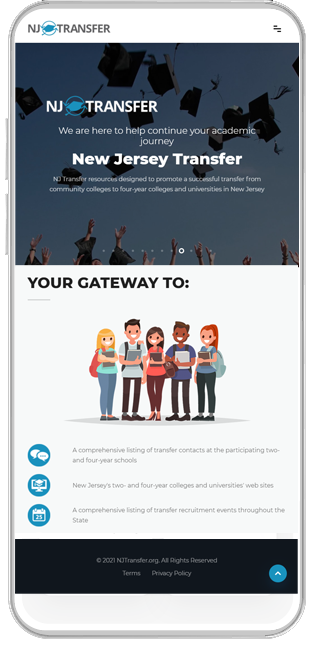
We are pleased to announce the addition of a new screen to the NJ Transfer Website. Students can now access profiles and images of the participating colleges and universities from the 'NJ Transfer Participating Colleges and Universities' page. This new feature provides users with a snapshot of important information regarding the admission and transfer process, as well as a direct link to the college's home page.
Welcome to NJ TRANSFER, the Web site
that helps students transfer community college courses in the State of
New Jersey. Before using NJ TRANSFER, we invite
you to review the Glossary and Frequently Asked Questions (f.a.q.) by clicking on the words at the top of the screen/ Next, select Students/Parents or Educators to view a listing of NJ TRANSFER and career and workforce resources.
NJ TRANSFER offers a web-based data information system, providing students consistent and reliable information. When accessing any of the transfer and articulation pages, you will see a “Help” button in the upper right hand corner of the screen. Click the “Help” button for an explanation of each page, as well as helpful hints about how to use the tools found on that page. When you initially choose any of the four following menu options: Find Course Equivalencies, Plan Your Academic Program, Evaluate Courses, or Search Using Keyword; you must select a 'Transfer From' and 'Transfer To' Institution. The 'transfer from' institution is the two-year college and the 'transfer to' is the four-year college or university. Use the drop-down arrows to choose the appropriate schools and click submit.
'Transfer From'
Institutions
'Transfer To"
Institutions
Find Course Equivalencies:
Find Course Equivalencies allows you to search
for a specific course(s). Enter either the course prefix or the course ID
at the community college. Then click go.
Burlington County College to Rutgers-Sch Arts and Science
Enter Course ID (example: ENG111)
The course look-up result screen provides users with information for a particular course at both the 'transfer from' and 'transfer to' institutions, including course ID, title, minimum and maximum credit, the course equivalency at the four-year institution, and the general education area(s), if any, that the course fulfills at both the 'transfer from' and 'transfer to' institutions. Click on the Gen Ed area for the four-year institution to view a list of all courses at the two-year school that will fulfill this Gen Ed area.
Transfer from Burlington County College
Course Effective Fall 2001 -
Course
ID:
ENG101
Title: College Composition I
Minimum
Credit:
03.00
Maximum
Credit:
03.00
GenEd
Area(s):
Communications Core
Course
Status:
Active
Repeatable
for Additional Credit: N
Transfer to Rutgers-Sch Arts and Science
Course Effective Fall 2001 -
Equivalency: 01355101 "RQ" (EXPOSITORY WRITING I)
Minimum
Grade:
C
Minimum
Credit:
03.00
Maximum
Credit:
03.00
Transferable: Y
GenEd Area(s): Humanities, Writing 1
Foot Notet:
RQ Entering First-Year students will receive free elective credit for this course.
Plan Your Academic Program:
Select Plan Your Academic Program from the menu, or Transfer Programs on the bottom of the page to view the Recommended Transfer Programs (RTPs) for the four-year institution. On the Recommended Transfer Program Look-Up Page, enter all or a portion of a major program name (i.e. – BIO) in the Major Keyword box. Choose to view the RTP listing the sender or receiver course ID's, click next. To see a complete listing of RTPs for the four-year institution, leave the Major Keyword box blank and click next.
Burlington County College to Rutgers-Sch Arts and Science
Major
Keyword (example: Literature):
Display
RTP using
Sender Courses OR
Receiver Courses
If you choose 'Display RTP using sender courses' the grid will display the community college course IDs that will satisfy the first two years of the academic program at the four-year institution. Click on any blue Gen Ed area to view a list of courses available at the two-year school that will fulfill the four-year institution's requirement.
If you choose 'Display RTP using receiver courses', the grid will display the four-year institution's course requirements for the program.
Evaluate Your Courses:
Select Evaluate Your Courses from the main menu or Evaluate Transcript at the bottom of the any screen. Enter the community college course ID's, grades and semester/year the course was completed. Next, choose RTP Evaluation or Course Evaluation.
If you want to evaluate courses from more than one community college, select 'Click here to choose from a list of appropriate institution codes' and use the drop down arrow to select the appropriate college.
To save an RTP evaluation, click Save Summaries. Select More Evaluations to apply the county college courses against other RTPs at the same institution, or change the receiving institution to apply the county college courses against the same major at another four-year institution. Click Show Summaries to view/compare the entire list of RTP summaries.
Keyword Look-up:
Users can perform four search functions using Keyword Look-up:
1) To search for a list of active courses that fulfill a Gen Ed area at a particular community college, click on the drop-down arrow in the Sender Gen Ed box, select the specific Gen Ed, and click Go. To include both inactive and active courses, check the box next to ‘Include Inactive Courses’.
2) To search for a list of courses from a particular community college that fulfills a Gen Ed area at a four-year school, click on the drop-down arrow in theReceiver Gen Edbox, select the specific Gen Ed area, and click Go. To see a list of courses from all 19 community colleges that fulfill a Gen Ed area at the four-year school, select change institutions, choose All Sending Institutions and repeat the above steps. To include both inactive and active courses, check the box next to ‘Include Inactive Courses’.
3) To display a list of all courses at a single community college, or all 19 community colleges containing a keyword, enter a word or partial word in the Keyword box, i.e. Eng, and click Go. To include both inactive and active courses, check the box next to ‘Include Inactive Courses’.
4) To see a listing of equivalent courses at one or all 19 community colleges, enter the four-year course ID in the Receiver Course box and click Go. To include both inactive and active courses, check the box next to ‘Include Inactive Courses’.
NJ TRANSFER contains a wealth of information and valuable resources for students, parents and educators to assist in the college planning, enrollment and transfer decision-making process. Click on NJ Colleges and Universitiesfor a complete listing of all New Jersey two- and four-year public and private institutions, as well as proprietary institutions with degree-granting authority. Select any school on this page and be taken to their Web site.
Looking for financial aid and scholarship information? Click on NJ STARS, Financial Aid, Scholarship, and EOF Programsfor direct links to the NJ STARS, New Jersey Higher Education Student Assistance Authority’s (HESAA), and Educational Opportunity Fund Program’s (EOF) Web sites. Do you need additional information about an institution’s transfer policies and procedures, admission requirements, or deadlines? Click on Transfer Contactsfor the name and e-mail address of a contact person at each participating NJ Transfer institution. Or, select Transfer Recruitment Eventsfor a complete listing of events sponsored by the two- and four-year colleges and universities in New Jersey.
4/01/09
The NJ TRANSFER
Web site is maintained by the New Jersey Statewide Transfer Initiative